Need Help?
Use Jago
RDN Pockets (Customer Fund Account)
Making a Transaction with RDN Pocket
Adding Money To RDN Pocket
You can add money to your RDN Pocket from Jago Pockets or other banks.
Via Jago Pockets
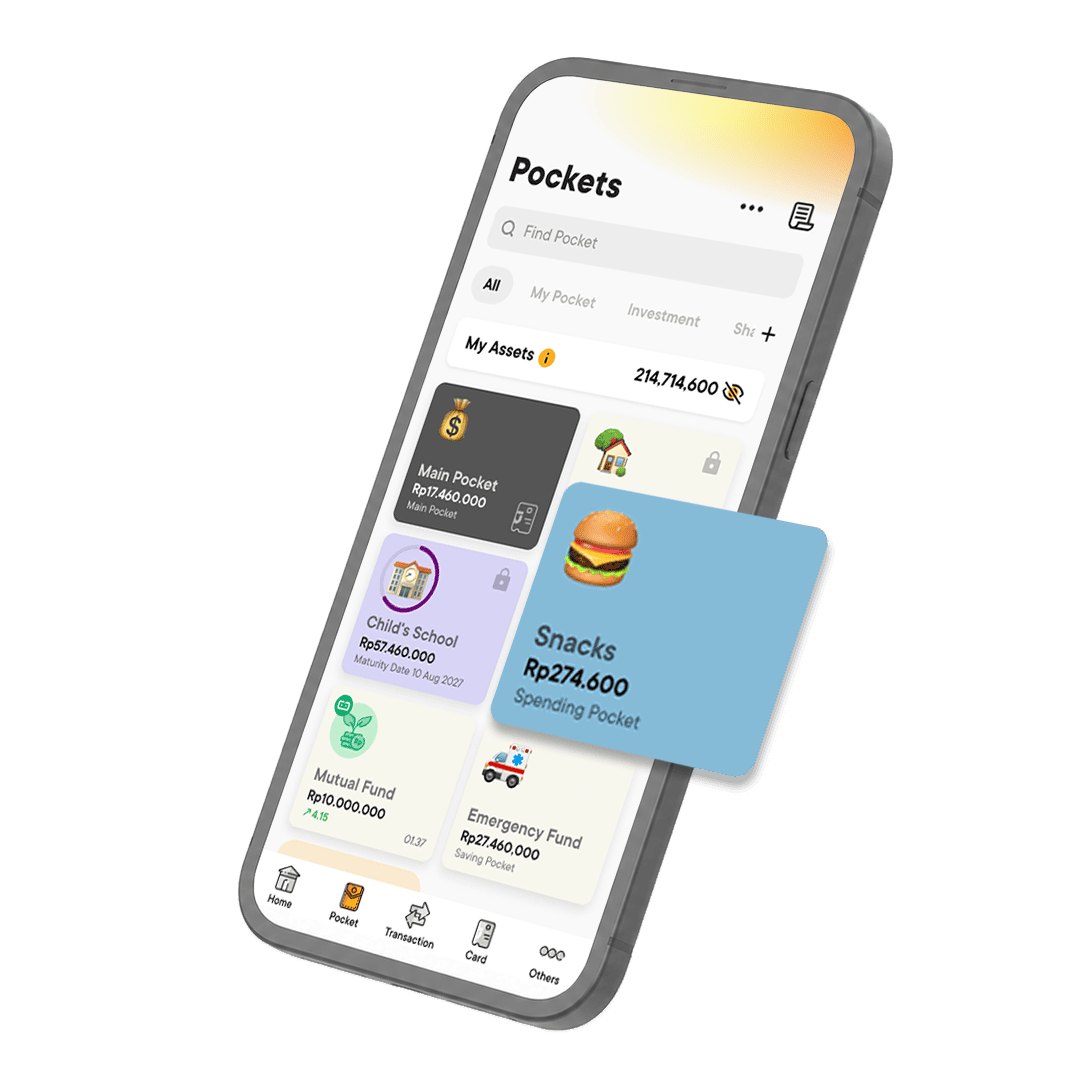
1. On your Pockets tab, choose the RDN Pocket you wish to add money
2. Tap the Add Money button
3. Type in how much money you want to add
4. Select the source of your money
5. Tap Add Money to finalize your transaction
Via ATM and Mobile Banking
You can add money to your RDN Pocket by making a transfer to 542 (Jago bank code) + your RDN Pocket ID.
You can find your RDN Pocket ID by following these simple steps:
1. Go to the Pockets tab and choose your RDN Pocket
2. Tap the three dots menu on the right corner of your Pocket detail page
3. Tap About this Pocket
4. Check your Pocket ID under the Pocket description. You can copy your Pocket ID by tapping the square icon next to it
Making a Transaction
All the transactions in the Capital Market using the fund in your RDN Pocket are done by your preferred investment platform, so this means you can't directly make an order to buy or sell through your RDN Pocket in the Jago app. This Pocket only serves as a passive Pocket to show your balance and your transaction history but can't be used to make a transaction directly.
Withdrawing Money from RDN Pocket
If you wish to move money from your RDN Pocket, you can make a withdrawal request from your investment platform app. You can see your transaction history in your RDN Pocket afterward and receive a notification when your withdrawal has been executed.
Require further assistance?
Contact Tanya Jago